That File in Teams? Your Entire Organization Might Be Able to Access It
Cyera Research uncovers how a common SharePoint setting silently exposes Teams files org-wide, expanding insider threat risk. Learn how to remediate this misconfiguration.


.avif)

When Collaboration Defaults Quietly Expands Insider Risk.
Why This Configuration Deserves Immediate Attention
Modern collaboration platforms like Microsoft Teams have become the backbone of enterprise communication, enabling employees to exchange files and sensitive information with the expectation that conversations remain private and access is tightly controlled. Yet while many security programs focus heavily on threats originating outside the organization, a large and often overlooked category of risk sits much closer to home: insider risk created by excessive internal data exposure.
This particular pattern surfaced during analysis conducted by Cyera Research while examining risk signals generated by Cyera’s AI-driven data risk engine. Rather than relying solely on traditional indicators such as data volume or simple policy violations, the engine evaluates exposure through contextual AI severity analysis-examining how data is shared, who can access it, and how platform configurations interact across cloud services. In this case, the analysis revealed a surprisingly common configuration pattern across Microsoft 365 environments that can silently expand internal access to files shared through Teams far beyond what users intend.
Importantly, this is not a vulnerability in Microsoft Teams or SharePoint, but a tenant-level configuration setting that many organizations enable without fully understanding its implications. Because the behavior is technically “by design,” it often escapes traditional security reviews. Yet the resulting exposure can materially increase insider risk by making sensitive files far easier to discover across the organization.
Findings like this illustrate why data-centric analysis is becoming essential for modern security programs. By analyzing how collaboration platforms, storage services, and identity systems interact in real environments, Cyera Research helps the security community uncover structural exposure patterns that would otherwise remain hidden-giving organizations the visibility and context needed to reduce insider risk before it turns into real-world impact.
Responsible Disclosure:
Cyera Research worked closely with Microsoft ahead of publication to validate our findings and strengthen configuration guidance, helping ensure organizations can adopt safer defaults and reduce unintended exposure.
What did we see
Imagine this: you drop a file into your own Teams chat - a quick way to save it for later. The chat is private. Nobody else is in it. But the file you just uploaded? It's now accessible to every employee in your organization.
Your colleagues haven't clicked "share." No one changed their permission. A single SharePoint setting - commonly enabled across Microsoft 365 tenants - silently turns every file uploaded through Teams into an org-wide shared document.
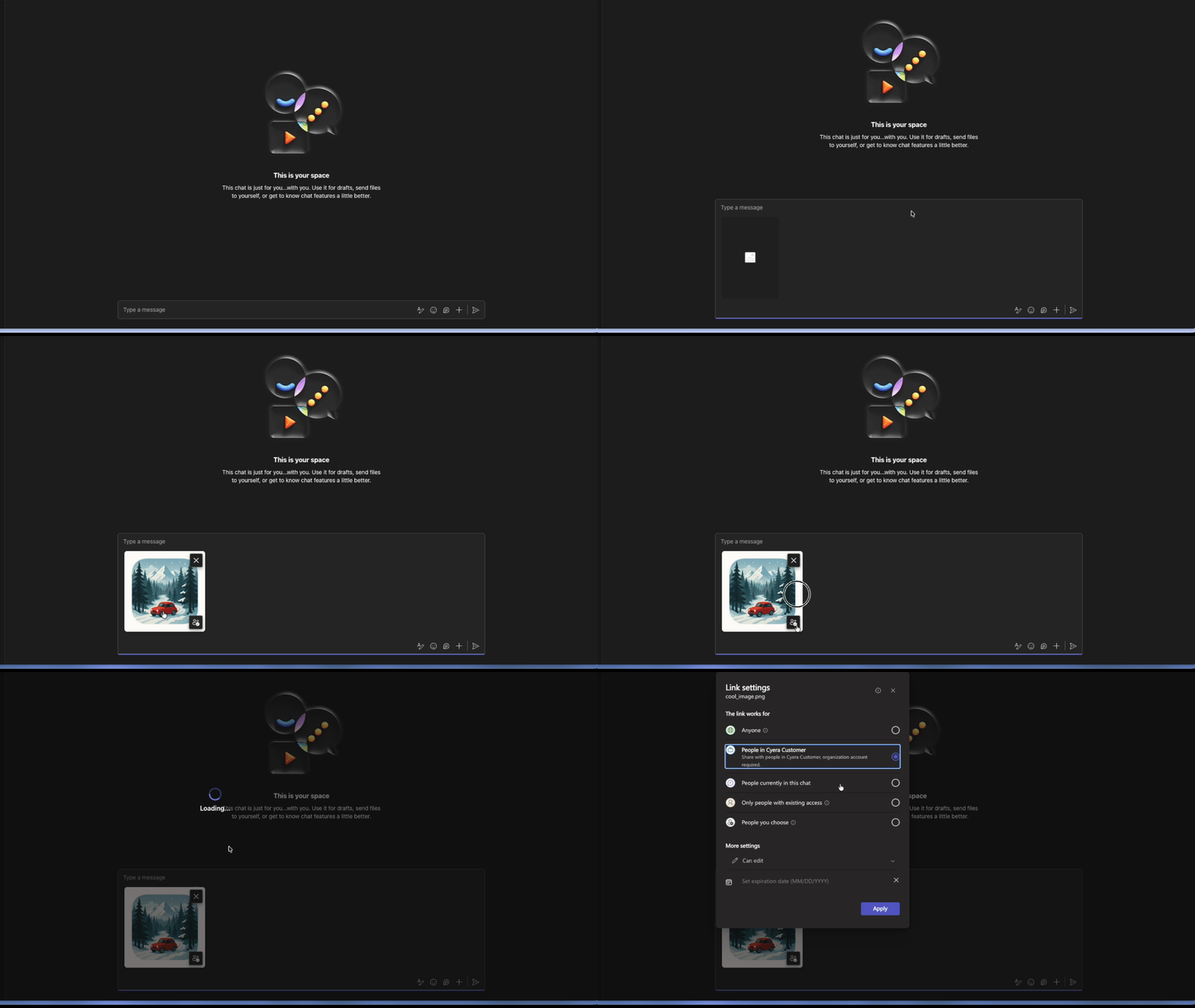
Cyera Research sees data from thousands of M365 tenants - and this misconfiguration keeps showing up. It affects files shared in private chats, group conversations, and team channels alike, quietly exposing sensitive data across entire organizations.
Microsoft Teams itself isn’t vulnerable - but a commonly overlooked SharePoint tenant setting can silently override users’ expectations of privacy. In this post, we break down how a misconfigured default sharing setting can turn routine Teams file uploads into organization-wide accessible documents, how attackers and insiders can exploit it, and - most importantly - the practical steps security teams can take to prevent and remediate the exposure.
Key Points: Addressing Teams Data Exposure
1. A Common Configuration Can Undermine Assumed Privacy
Files shared in Teams, even in conversations that appear private, may be far more accessible internally than users or administrators realize. The issue stems from how sharing defaults are configured at the tenant level, not from user behavior.
2. The Exposure Expands Insider and Post-Compromise Risk
When internal access is overly broad, sensitive files become easier to discover and misuse - whether by a curious insider or an attacker leveraging a compromised account. What should be a limited incident can quickly become organization-wide exposure.
3. The Risk Is Preventable with the Right Controls
This is an administrative misconfiguration, not a platform vulnerability. We outline practical steps organizations can take to review their settings, tighten default sharing behavior, and reduce unnecessary internal access - without disrupting collaboration.
What's Actually Happening: The Teams-SharePoint Connection
Microsoft Teams doesn't manage file permissions on its own. It delegates entirely to SharePoint and OneDrive. When you upload a file to a Teams channel, it lands in the team's SharePoint site. When you send a file in a chat - including a chat with yourself - it goes to your OneDrive. Teams is just the interface; SharePoint and OneDrive are the storage layer, and they control who can access what.
Here's where it breaks down. SharePoint has a tenant-level setting called DefaultSharingLinkType that determines what kind of sharing link is generated whenever a file is uploaded or shared. When this setting is configured to Organization - labeled "Only people in your organization" in the SharePoint Admin Center - every file uploaded through Teams automatically receives an org-wide sharing link.
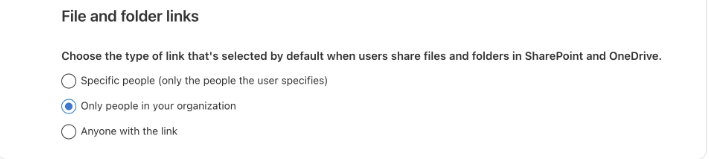
The setting name is misleading. "Only people in your organization" sounds restrictive. Admins read it as "not external" and move on. But internally, it means every authenticated employee in the tenant can access the file if they discover or receive the link. The intent is to block external sharing. The side effect is that nothing is private internally.
This applies across the board. Channel files stored in a team's SharePoint site get org-wide links if the site's SharingCapability allows it. Chat files - including 1:1 chats, group chats, and self-chats - stored in OneDrive get the same treatment. Users see a private conversation. SharePoint sees a file that needs a sharing link and applies the tenant default, silently.
How Overshared Files Get Found and Exploited: SharePoint Search & Graph API
The misconfiguration doesn't just leave files technically accessible - it makes them easy to find. Additionally, internal LLMs (like Microsoft 365 Copilot) exacerbate this risk, making it dangerously easy for employees to inadvertently stumble upon sensitive overshared data simply by asking routine questions. Here's how attackers and insiders discover this data:
SharePoint search is all it takes. Any employee can open
https://<tenant>.sharepoint.com,
type "salary," "confidential," or "API key" into the search bar, and surface files shared via Teams across the entire tenant. No special tools, no elevated privileges -- just a browser and curiosity. SharePoint's search engine indexes content across all site collections, and org-wide sharing links mean the results are clickable and downloadable.
The Graph API makes it worse. A technically savvy insider - or an attacker with a compromised account - can use Microsoft's Graph Search API to enumerate overshared files programmatically. KQL queries like filetype:xlsx AND salary or "client_secret" OR "connection string" return structured results with pagination support, enabling systematic discovery of sensitive content at scale. This isn't an exploit. It's a legitimate API behaving exactly as designed.
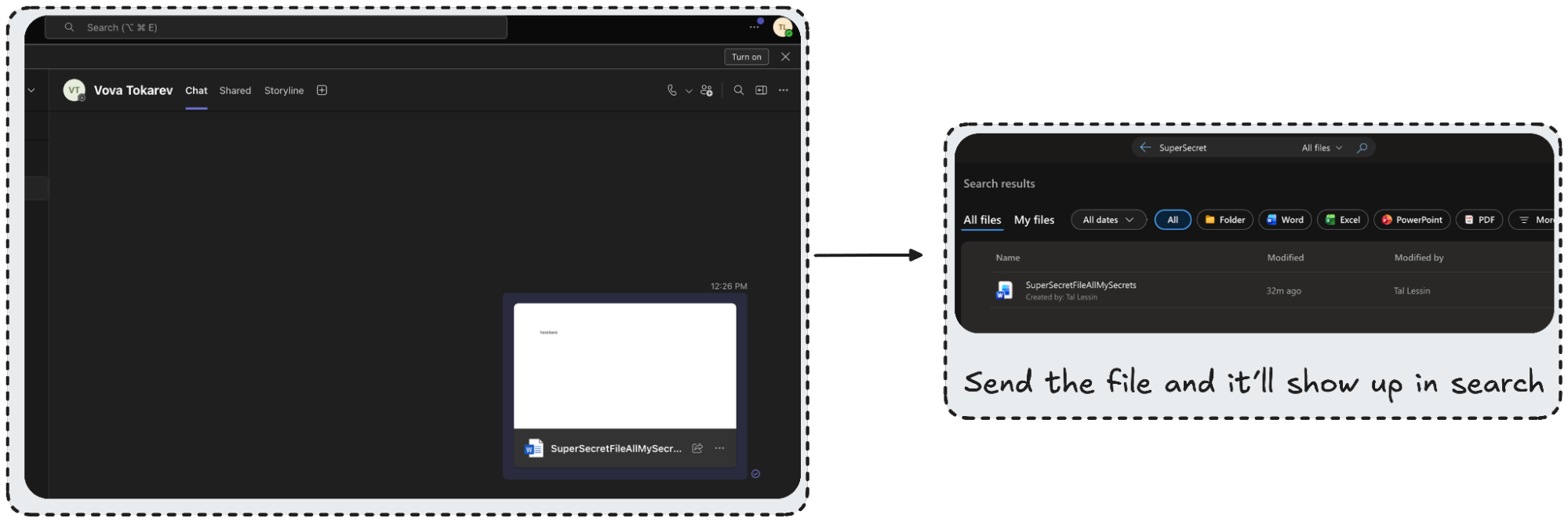
The insider threat scenarios are sobering. HR teams sharing performance reviews in a private channel. Legal teams exchanging M&A documents via Teams. A developer dropping a credentials file into a DevOps channel for quick reference. An employee storing tax documents in their self-chat, believing it's completely private. Under this misconfiguration, all of these files become searchable and accessible to every employee in the organization.
Post-compromise, the blast radius explodes. When properly configured, a compromised M365 account gives an attacker access to one user's files. With it, that same account can access files from every Teams channel and chat in the tenant.
The attack essentially becomes a high-speed, automated kill-chain:
- Initial Access: The attacker compromises a standard employee account.
- Automated Enumeration: They use the Microsoft Graph API to programmatically scan the tenant.
- Targeted Discovery: They query for KQL terms like filetype:xlsx AND "password", instantly pulling up overshared files.
- Pivot: They extract a DevOps spreadsheet with AWS keys and pivot from a compromised inbox directly to production infrastructure.
What should be a contained incident becomes a full organizational breach. And because the attacker technically "has access" to everything they're touching, standard perimeter alerts stay quiet.
How to trigger alerts: To catch this behavior, security teams must look beyond default alerts. You have to hunt for anomalous mass file enumeration by monitoring SearchQueryPerformed events in the Unified Audit Log, or by relying on your data security product to continuously monitor and flag when sensitive data is broadly accessible.
Why It's Commonly Missed: The M365 Security Blind Spot
This misconfiguration persists because it hides in plain sight. The setting lives in the SharePoint Admin Center, not the Teams Admin Center -- so admins managing Teams may never encounter it. It's a tenant-level configuration, typically set once during initial setup and never revisited.
The Teams interface makes the problem invisible. Users see no indication of who can actually access their files. There's no warning, no permission summary, no "this file is accessible to 5,000 people" banner. The UI reinforces the illusion of privacy.
The setting's name doesn't help. "Only people in your organization" reads as a restriction, not as org-wide open access. Admins interpret it as a guardrail against external sharing and move on.
Security tooling has a blind spot here, too. CASBs and DLP solutions may flag individual overshared files, but they rarely identify the root cause tenant setting driving the behavior. Microsoft Secure Score does include a recommendation for sharing settings, but it gets deprioritized among hundreds of other items. Most M365 security assessments focus on conditional access, MFA, and mailbox configurations -- not SharePoint sharing defaults buried several clicks deep.
This is an administrative misconfiguration, not a user error. Users are doing nothing wrong. The system is silently overriding their intent.
What To Do About It: Remediating Tenant-Level Defaults
1. Stop the Bleeding: Update the Tenant Default
Check the setting now. In the SharePoint Admin Center, navigate to Sharing > File and folder links and see what the default is set to.
Change the default to "Specific people." This ensures sharing links are scoped only to explicitly named recipients. The PowerShell command is one line:

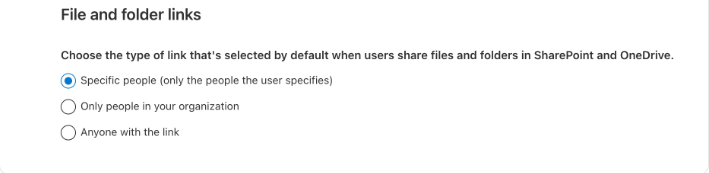
Verify the change took effect:

# Expected output: Direct
2. Clean Up the Spill: Address Legacy Links
Here is the critical catch: Changing this setting is not retroactive. Running the command above only fixes the behavior for newly uploaded files. Every file already shared with an org-wide link prior to this fix remains completely exposed and searchable. To secure your existing data:
- Programmatic Discovery: Manual searches won't scale. Security teams should leverage the Microsoft Graph API to programmatically scan the entire tenant for overshared legacy files.
- Systematic Revocation: Once identified, admins must systematically revoke these broad sharing links via PowerShell or automation, forcing users to explicitly share sensitive files moving forward.
- Deploy a Data-Centric Platform: Combining this configuration fix with a data-centric security platform allows for continuous discovery and classification of existing legacy exposures that occurred before the configuration fix.
3. Audit Teams-connected SharePoint sites
Finally, check the individual sharing capabilities of existing sites. Pay special attention to sites created by public teams - these may include "Everyone except external users" with Edit permissions by default, compounding the exposure:

The tenant fix takes seconds. But the exposure it closes - and the legacy links left behind - may have been silently accumulating for years.
This finding reflects a broader pattern Cyera Research continues to uncover: cross-service permission inheritance in cloud platforms can quietly create large-scale data exposure. Teams trusts SharePoint. SharePoint inherits tenant-level defaults. And a single misconfigured setting can silently override the privacy expectations of every user in the organization.
These are not theoretical edge cases - they are structural blind spots that materially increase organizational data risk. At Cyera Research, we don’t just surface these risks. We analyze the underlying architectural patterns that enable them and provide practitioners with the visibility, context, and remediation guidance needed to reduce exposure before it becomes impact.
Microsoft provides additional controls that can significantly reduce long-term exposure and improve visibility:
Enable link expiration.
Set a default expiration period (for example, 90 days) for sharing links. This ensures that access granted today does not remain open indefinitely and reduces the accumulation of long-lived internal exposure.
Allow controlled user modification via the UI.
While administrators should enforce secure defaults, users can still adjust link settings when needed. Maintaining visibility and guardrails - rather than removing flexibility entirely - helps balance collaboration with security.
Leverage external participant notifications.
When external users are included in a chat or sharing action, Microsoft can automatically generate notifications. This adds an important awareness layer, helping users recognize when content may leave the organization.
Use sensitivity labels.
Apply and enforce sensitivity labels to control sharing behavior based on data classification. Labels can restrict external access, enforce encryption, and align collaboration settings with the sensitivity of the content.
Together, these controls reinforce the tenant-level remediation by limiting link persistence, increasing transparency, and aligning sharing behavior with organizational risk tolerance.
Teams & SharePoint Security: Common Questions
Q.) Why are files shared in "private" Teams chats often accessible to the entire organization?
A.) Files shared in Teams are not stored "in" the app; they live in SharePoint or OneDrive. If your tenant’s DefaultSharingLinkType is set to "Organization," any file uploaded to a chat generates a link accessible to every employee. This creates a "Privacy Illusion" where the conversation feels restricted, but the underlying data remains discoverable via simple search.
Q.) How does the SharePoint "DefaultSharingLinkType" setting impact data exposure?
A.) The DefaultSharingLinkType dictates the baseline permission for every new file link created in the tenant. When set to "Organization," it defaults to the broadest possible internal access. This configuration bypasses traditional folder-level permissions, allowing any authenticated user or an attacker with basic internal access-to find and extract sensitive documents without ever joining the original Teams chat.
Q.) What is the most effective way to remediate Teams-to-SharePoint data leaks at scale?
A.) Rather than manual file-by-file remediation, security teams should use PowerShell to update the tenant-level setting to "Specific People." This ensures that by default, only those explicitly added to a file or chat can access the content. Combining this with a data-centric security platform allows for continuous discovery and classification of existing legacy exposures that occurred before the configuration fix.
Q.) Can an internal attacker use Microsoft Graph API to exploit these sharing defaults?
A.) Yes. While standard SharePoint search allows for manual discovery, the Microsoft Graph API enables attackers to programmatically scan the entire tenant for overshared files. By querying for items with "Organization" level permissions, an actor can rapidly identify and exfiltrate sensitive data like credentials, salary lists, or intellectual property, often without triggering traditional perimeter-based alerts.


.svg)